In JiPOS ERP, after creating a payment method, you must define where it should be available across the system (e.g., POS, Invoicing, Purchases, Room Billing).
This is done through Account Mapping, which controls where the payment option appears and can be used.
Steps
Step 1: Navigate to Chart of Accounts
Go to Accounting → Charts of Accounts
Step 2: Locate the Payment Account
Find the payment method you created (e.g., Cash, Bank XYZ, M-Pesa Till)
You can use the search input at the top-right section of the table
Step 3: Open Account Mapping
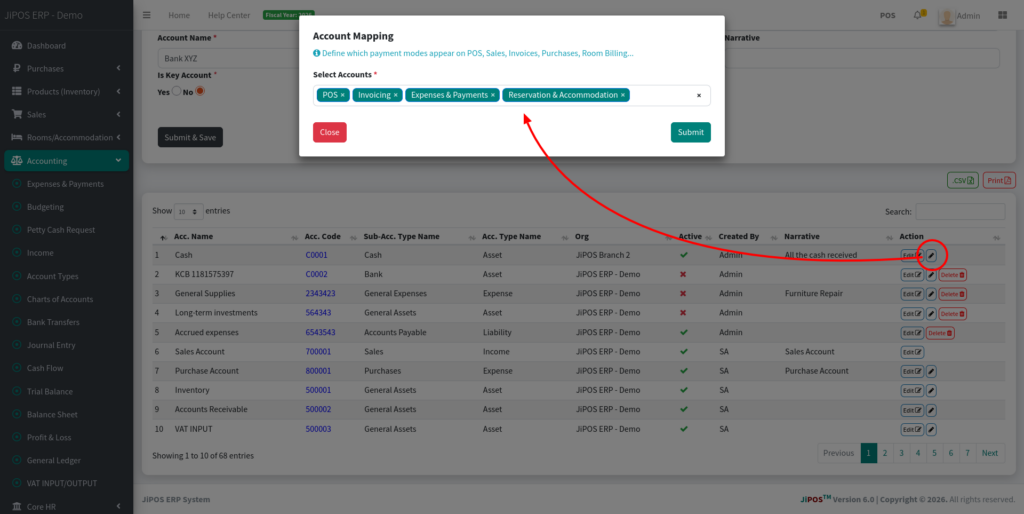
Click the Edit (✏️) icon under the Action column
The Account Mapping popup will appear
How to Configure Where a Payment Method is Used in JiPOS ERP (Account Mapping)
Step 4: Select Where the Payment Method Should Be Used
From the popup, choose the modules where this payment method should appear:
POS → Available in Point of Sale
Invoicing → Available when creating invoices
Expenses & Payments → Used for expense entries
Reservation & Accommodation → Used in hotel/room billing
Step 5: Save Changes
Click Submit to apply the configuration
What Happens After Configuration
The payment method becomes visible only in the selected modules
Users will only see relevant payment options in each section
Helps maintain clean and controlled financial workflows
Examples
Payment Method
Where to Use
Cash
POS, Expenses
M-Pesa Till
POS, Invoicing
Bank Transfer
Invoicing, Accounting
Room Charge
Reservation & Accommodation
Tips
Only enable payment methods where they are actually used
Avoid enabling all modules unnecessarily (keeps UI clean)
Always test in POS after setup
Use naming conventions (e.g., M-Pesa Till 1, Bank KCB)
In JiPOS ERP, payment methods (such as Cash, Bank, or M-Pesa) are created as Asset Accounts and must be configured under Sub-Account Types marked as “Payment Mode”.
Once configured correctly, they become available in:
POS payments
Sales transactions
Financial reports
Part 1: Configure Sub-Account Type as Payment Mode (Important)
Before creating a payment method, ensure the sub-account type is set correctly.
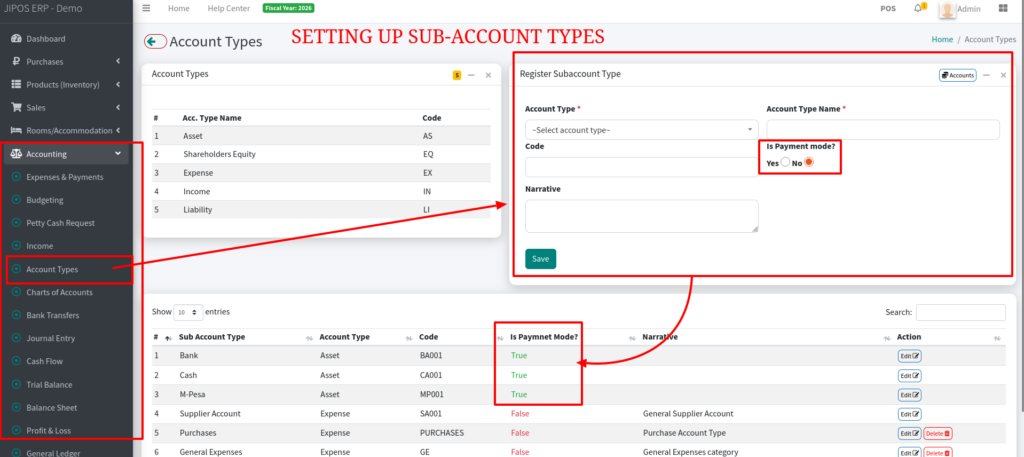
Step 1: Navigate to Account Types
Go to Accounting → Account Types
Step 2: Create or Edit Sub-Account Type
Click Add / Edit Sub-Account Type
Fill in:
Account Type → Asset
Sub-Account Name → e.g., Cash, Bank, M-Pesa
Code → Unique code
Step 3: Enable Payment Mode
Set “Is Payment Mode?” → YES
Click Save
Note:
In most cases, this is already done during system rollout.
Skip this step if this is already done.
Part 2: Create the Payment Method
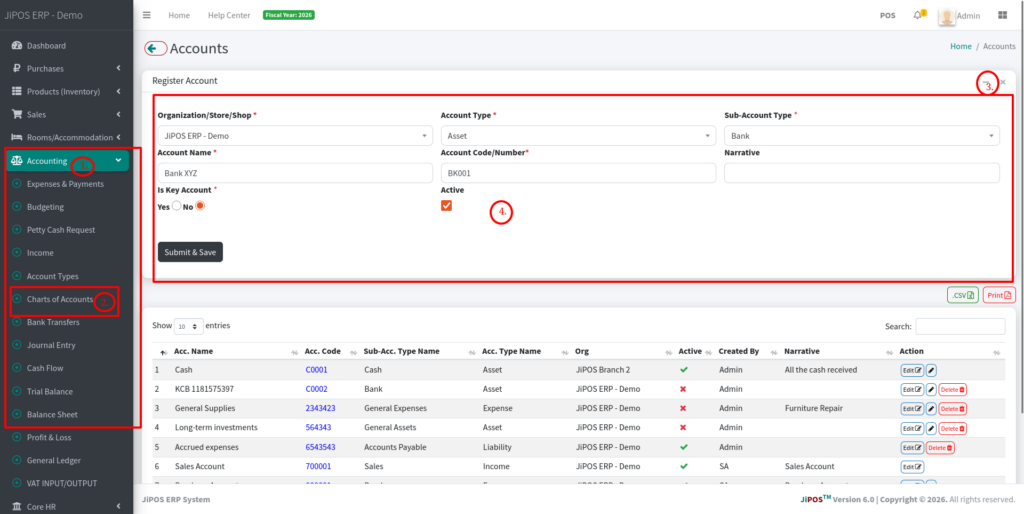
Step 4: Navigate to Chart of Accounts
Go to Accounting → Charts of Accounts
Step 5: Add New Account
Click the ( + ) Add / Create button
Step 6: Fill in Account Details
Organization/Store → Select your branch(preferably go with the default/pre-selected Org)
Account Type → Asset
Sub-Account Type → (Cash / Bank / M-Pesa)
Account Name → e.g., Cash Till 1, M-Pesa Till, Bank XYZ
Account Code → Must be unique
Active → ✔ Checked
Step 7: Save
Click Submit & Save
How to Add a Payment Method in JiPOS ERP
What Happens Next
The account becomes a payment method
It appears in:
POS payment options
Sales transactions
Financial reports
Tips
Always create payment methods under Asset accounts
Use clear naming (e.g., M-Pesa Till 1, KCB Bank)
Ensure Sub-Account Type is marked as Payment Mode
Keep account codes structured and unique
Common Issues
1. Payment method not appearing in POS
Confirm Sub-Account Type is marked as Payment Mode = Yes
Ensure account is Active
Configure Where a Payment Method is Used in JiPOS ERP (Account Mapping)